
How to Export ChatGPT Memories to Claude or Gemini (2026 Guide)
If you've been using ChatGPT Memory for a while, you've probably accumulated a personalized context — your preferences, projects, writing style, recurring instructions. That's valuable. But the moment you try Claude or Gemini for a new task, none of it comes with you. Both platforms have to learn you from scratch.
The good news: both Claude and Gemini now officially support importing memories from ChatGPT. The bad news: they don't read ChatGPT's memory store directly. You have to manually extract the memories from ChatGPT using a specific prompt, then paste the result into the destination platform.
This guide walks through every officially supported method in 2026, with the exact prompts, step-by-step screenshots from the Claude and Gemini import dialogs, and an honest assessment of what you actually preserve — and what you lose along the way.
Why Export ChatGPT Memories
A few common reasons:
- You're switching tools. Moving from ChatGPT to Claude for coding, or to Gemini for Google ecosystem integration, and you don't want to repeat months of personal context.
- You use multiple platforms. You still use ChatGPT, but you want Claude to know the same things so you can hand off tasks between them.
- You're worried about lock-in. You've invested a lot of personal context into ChatGPT's memory and want a way out, just in case.
- You're curating. You want to review what ChatGPT has stored about you, clean it up, and start fresh on another platform with only the good stuff.
Whatever the reason, the process is similar across all destinations: generate a structured export from ChatGPT, then hand it to the receiving platform.
Before You Start: What You'll Get, What You'll Lose
It's important to set realistic expectations. None of these methods transfer the full richness of your ChatGPT history. What you actually get is more like a profile snapshot — a list of facts, preferences, and recurring instructions, written in neutral form.
Specifically:
- ✅ Preserved: Stored memory entries ("user is a frontend developer"), explicit instructions ("always respond in bullet points"), recurring preferences ("prefers Python over JavaScript").
- ⚠️ Partially preserved: Project summaries. You'll get a short entry per project, but not the full reasoning or trade-off discussions that produced it.
- ❌ Lost: The conversation history itself. Context around why you made a decision, alternatives you considered, specific code you wrote together — all gone. You're transferring conclusions, not process.
- ❌ Lost: Everything ChatGPT "knows" from Reference Chat History that hasn't been converted into an explicit memory entry. That implicit profile stays in ChatGPT.
With that in mind, here's how to run the migration.
Method 1: ChatGPT → Claude (Official Memory Import)
Claude ships with an official Memory Import feature that accepts a structured text export from another AI. Anthropic provides the recommended export prompt in their official memory documentation.
Step 1 — Run the export prompt in ChatGPT
Open any ChatGPT conversation. Paste the following prompt exactly:
Export all of my stored memories and any context you've learned about me
from past conversations. Preserve my words verbatim where possible,
especially for instructions and preferences.

## Categories (output in this order):

1. **Instructions**: Rules I've explicitly asked you to follow going
   forward — tone, format, style, "always do X", "never do Y", and
   corrections to your behavior. Only include rules from stored memories,
   not from conversations.

2. **Identity**: Name, age, location, education, family, relationships,
   languages, and personal interests.

3. **Career**: Current and past roles, companies, and general skill areas.

4. **Projects**: Projects I meaningfully built or committed to. Ideally
   ONE entry per project. Include what it does, current status, and any
   key decisions. Use the project name or a short descriptor as the first
   words of the entry.

5. **Preferences**: Opinions, tastes, and working-style preferences that
   apply broadly.

## Format:

Use section headers for each category. Within each category, list one
entry per line, sorted by oldest date first. Format each line as:

[YYYY-MM-DD] - Entry content here.

If no date is known, use [unknown] instead.

## Output:
- Wrap the entire export in a single code block for easy copying.
- After the code block, state whether this is the complete set or if
  more remain.
ChatGPT will produce a structured, single-code-block export of everything it has stored about you, organized into the five categories.
Step 2 — Copy the full output
Click the copy button on the code block. Double-check that you've copied the whole export — if ChatGPT says "more memories remain," ask it to continue and then merge both blocks.
Step 3 — Paste into Claude's import dialog
In Claude, go to Settings → Capabilities → Memory → Import memory from another AI. A dialog will show the same prompt template (so you know you're in the right place) plus a text box to paste the export.
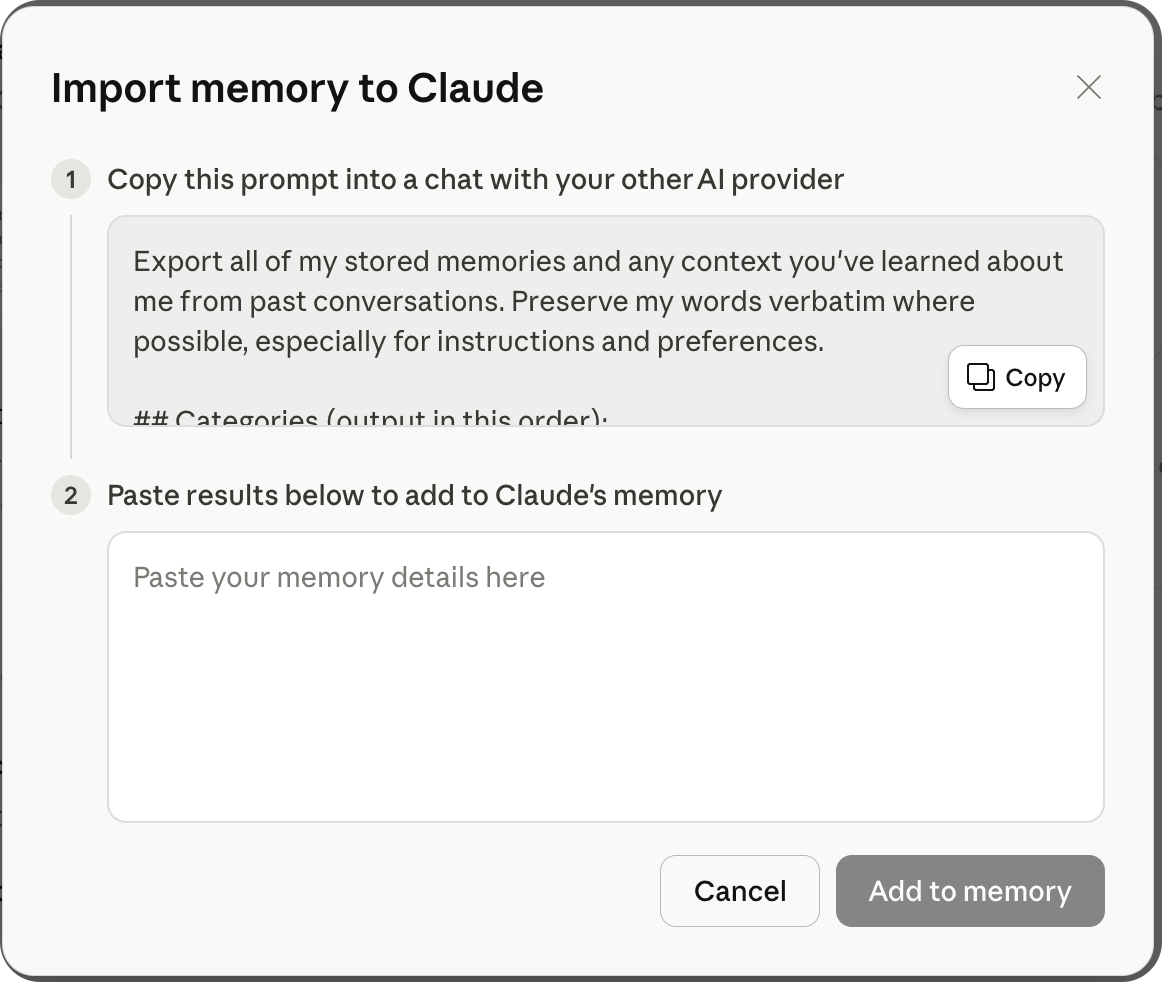
Paste the ChatGPT export into the text box and confirm. Claude will absorb the content into its memory system, which you can then review or edit under the memory management page.
What this actually transfers
You'll see Claude's memory get populated with your stated preferences, active projects, and recurring instructions. The structure Claude uses for memory (Work Context / Personal Context / Top of Mind / Brief History) will absorb your imported facts into the relevant buckets.
What you don't see: the underlying conversations that produced those facts. Claude has no way to ingest ChatGPT chat history — only the structured export of memories.
Method 2: ChatGPT → Gemini (Memory Import, Prompt-Based)
Gemini offers two import paths. The first is prompt-based, similar to Claude, and is described in Google's official memory docs.
Step 1 — Run Gemini's export prompt in ChatGPT
Google provides its own export prompt. It's shorter than Anthropic's, with slightly different categories:
You are helping me import context from one AI assistant to another.
Your job is to go through our past conversations and sum up what you
know about me.

In the output, please avoid using any first-person pronouns
(I, my, me, mine) and any second-person pronouns (you, your, yours).
Instead, refer to the individual you have learned about as "the user"
or use neutral phrasing.

Preserve the user's words verbatim where possible, especially for
instructions and preferences.

Categories (output in this order):
1. Demographics Information: Preferred names, profession, education,
   and general residence.
2. Interests & Preferences: Sustained, active engagements (not just
   owning an object or a one-time purchase).
3. Relationships: Confirmed, sustained relationships.
4. Dated Events, Projects & Plans: A log of significant, recent
   activities.
5. Instructions: Rules I've explicitly asked you to follow going
   forward, "always do X", "never do Y", and corrections to your
   behavior. Only include rules from stored memories, not from
   conversations.

Format:
Divide the content into the labeled section using the categories above.
Try to include verbatim quotes from my prompts that justify each entry.
Structure each entry using this format:
The user's name is <name>.
- Evidence: User said "call me <name>". Date: [YYYY-MM-DD].

Output:
- Format the final output summary as a text block.
Step 2 — Paste into Gemini's import dialog
In Gemini, go to Settings → Import memory to Gemini. You'll see a dialog containing the same prompt and a paste area:
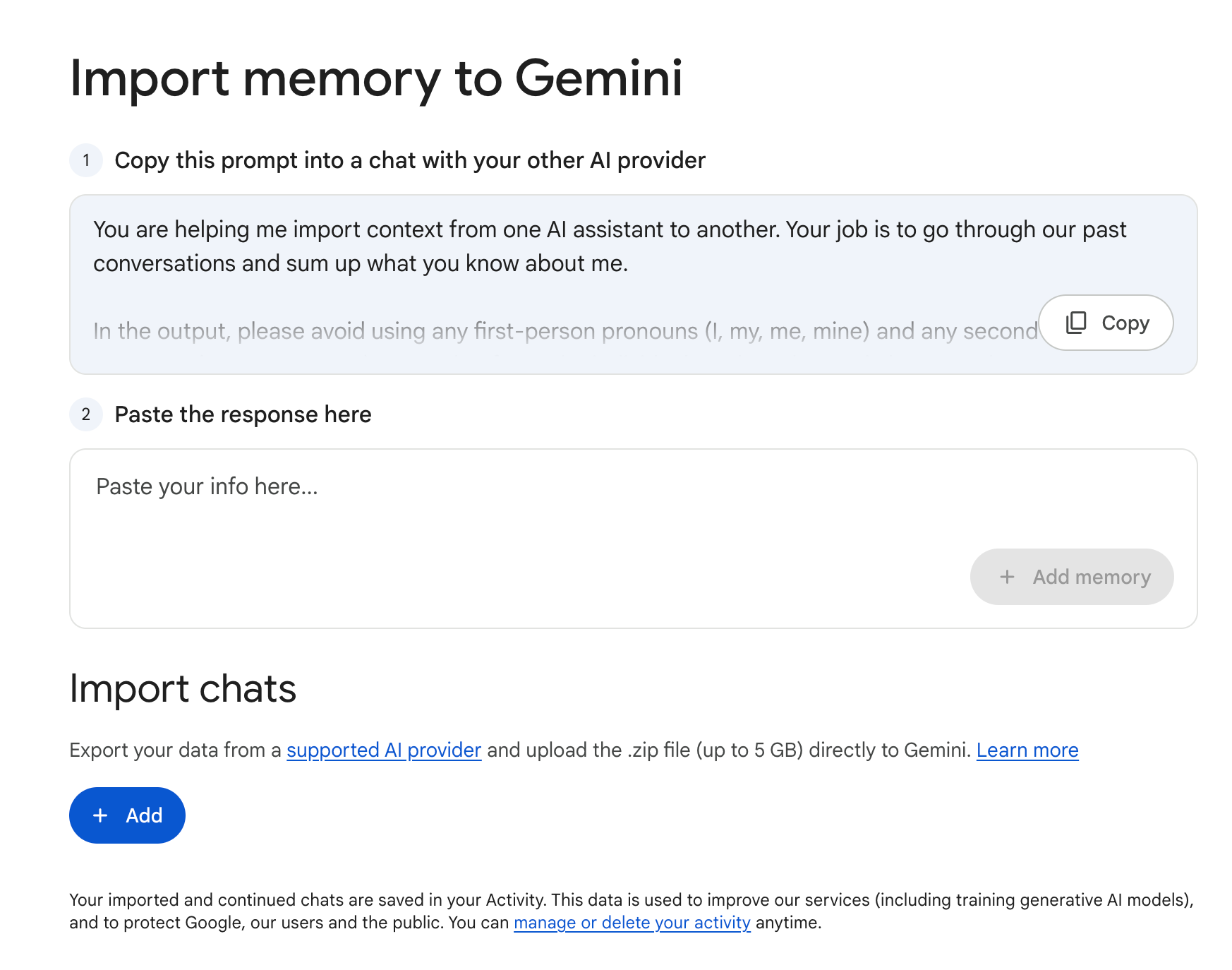
Paste the ChatGPT output and click Add memory. Gemini will create a new conversation thread to integrate these memories, and you'll be able to inspect them in your memory settings afterward.
Heads up: Gemini's auto-extraction is generally more conservative than ChatGPT's or Claude's. Some items from your export may not survive Gemini's own filtering.
Method 3: ChatGPT → Gemini (Chat History ZIP Import)
Gemini also supports importing full chat history ZIPs exported from other AI platforms. This is the only officially supported way in 2026 to transfer actual conversation content — not just summaries — between platforms.
Step 1 — Export your ChatGPT history
In ChatGPT, go to Settings → Data Controls → Export data. OpenAI will email you a link to download a ZIP containing your full chat history as JSON files.
Step 2 — Upload the ZIP to Gemini
In Gemini, go to Settings → Import chat history and upload the ZIP. Google lists the supported source platforms and format details in their official import guide. Limits: 5 GB per file, up to 5 ZIPs per day.
Imported conversations appear in Gemini's chat list with an import icon. You can continue them as if they were native Gemini chats.
The privacy trade-off
Google's documentation explicitly states: "Your imported and continued chats are saved in your Activity. This data is used to improve our services (including training generative AI models)."
In other words, if you use ZIP import, your full ChatGPT history becomes training data for Google's models. For a lot of people, that's fine. For anyone dealing with sensitive projects, personal reflection, or confidential work, it's a hard no.
The prompt-based method (Method 2) doesn't carry this tradeoff because you're only transferring a summary — but that summary lacks the depth of the original conversations.
What Every Method Actually Loses
Regardless of which method you pick, there are structural losses you should be aware of:
- Context loss. "User uses Hono framework" tells the destination platform what you decided, not why. The discussion of alternatives, the trade-offs, the reasoning — gone. Memory imports transfer conclusions, not process.
- Temporal staleness. An export is a point-in-time snapshot. As soon as you keep chatting on ChatGPT, your memories diverge from the imported version on the other platform. You'd need to re-export and re-import on a schedule.
- One-way transfer. ChatGPT currently offers no "import from Claude/Gemini" feature, so the sync only goes out. If your main platform is ChatGPT, anything you add to Claude afterward stays in Claude.
- Memory drift across three platforms. If you use all three actively, each has its own version of "you." A memory updated in Claude doesn't make it back to ChatGPT or Gemini. Over time, all three versions drift apart.
- Filter losses. Every destination platform applies its own filters during import. Claude is restrained about what it keeps; Gemini is even more so. Some items from your ChatGPT export will silently be dropped.
These aren't bugs. They're the natural consequence of treating memory as a one-time file transfer instead of a live, shared layer.
A Better Way: Keep Memories in a Neutral Layer
The manual export process is useful for one-off migrations. But if you're using ChatGPT, Claude, and Gemini on the same day — like most people doing serious work with AI — the "re-export every week" dance gets old fast.
The structural fix is to stop treating memory as something each platform owns. Instead, keep your personal context in a neutral layer that sits outside any single AI platform, and let each platform read from it when you start a new conversation.
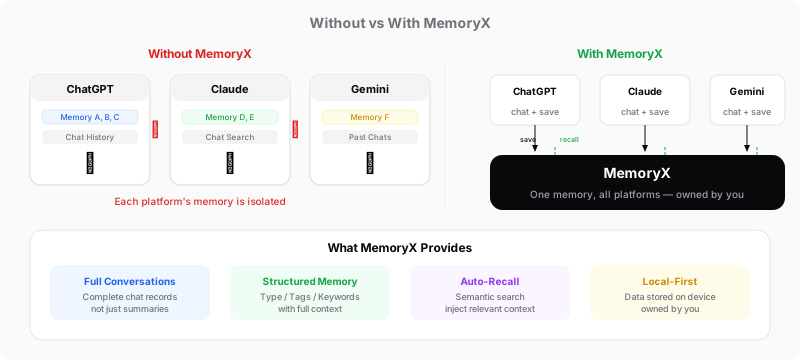
This is exactly what MemoryX does. It's a Chrome extension that auto-saves conversations from ChatGPT, Claude, and Gemini, extracts structured memories into a personal knowledge base stored locally in your browser, and injects relevant context into new chats on any of the three platforms. No manual re-exports. No profile drift. The same personal context follows you everywhere.
It doesn't replace ChatGPT Memory, Claude Memory, or Gemini Memory — you can still use all of those. But it solves the one problem none of them can solve alone: cross-platform continuity.
If that sounds useful, you can read the full comparison of how each platform's built-in memory works in ChatGPT vs Claude vs Gemini: AI Memory & Context Features Compared, or jump straight to how MemoryX implements it technically.
Common Questions
Does ChatGPT support importing memories from Claude or Gemini?
No. As of 2026, ChatGPT has no memory import feature. The only way to bring Claude or Gemini memories into ChatGPT is to tell it manually, one entry at a time ("remember that I prefer X"), which defeats the purpose.
Will the import overwrite my existing Claude/Gemini memories?
No. Both platforms add imported memories to the existing memory store rather than replacing it. You may end up with duplicate or conflicting entries, which you'll need to clean up manually in the memory management UI.
Can I re-run the export prompt later to sync updates?
Yes, but you'll get duplicates. There's no delta sync — you'd need to either merge manually, or wipe the destination memory before re-importing. This is why recurring manual exports get old fast.
Why does ChatGPT's export sometimes cut off?
The export prompt asks for a structured output, which can exceed ChatGPT's single-response length for users with lots of memories. If ChatGPT says "more memories remain," ask it to continue from where it left off, and concatenate both outputs.
Is there any way to preserve the actual conversations, not just the facts?
Only Gemini's ZIP import supports this, and only from ChatGPT. But the trade-off is that your full ChatGPT history becomes Google training data. For private conversations, either accept the trade-off or stick to the prompt-based methods.
Is it safe to paste the export prompt into a shared ChatGPT workspace?
Treat the export output as sensitive. It contains everything ChatGPT has ever learned about you. Don't run the export in a shared Team workspace or on a device you don't control — do it in your own private ChatGPT account.
MemoryX is a Chrome extension that auto-saves AI conversations and keeps personal context in sync across ChatGPT, Claude, and Gemini — without manual exports. Install it from the Chrome Web Store.
Tired of manual memory exports?
Let MemoryX keep your AI context in sync across ChatGPT, Claude, and Gemini — automatically.
Install from Chrome Web Store